Docs
Menu
Close
The Figma for Jira Pro app allows users to attach Figma designs to Jira issues. Whenever a user views an issue that has a Figma design attached all the attached designs (and their corresponding metadata) is retrieved from the Figma API.
Each design is processed by the Jira instance and stored in memory during transfer from the Figma API. Given that the size of a Figma design can range from <1MB to >100MB, large Data Center instances with many active users can experience issues with resources like CPU and memory consumption. This can result in Java heap space Out of Memory errors in the Jira application log.
In addition, due to the potential size of the Figma designs network requests to the Figma API are often long-running tasks which may cause the Jira Data Center system to become unresponsive as the available number of worker threads of the application container are being consumed by these requests.
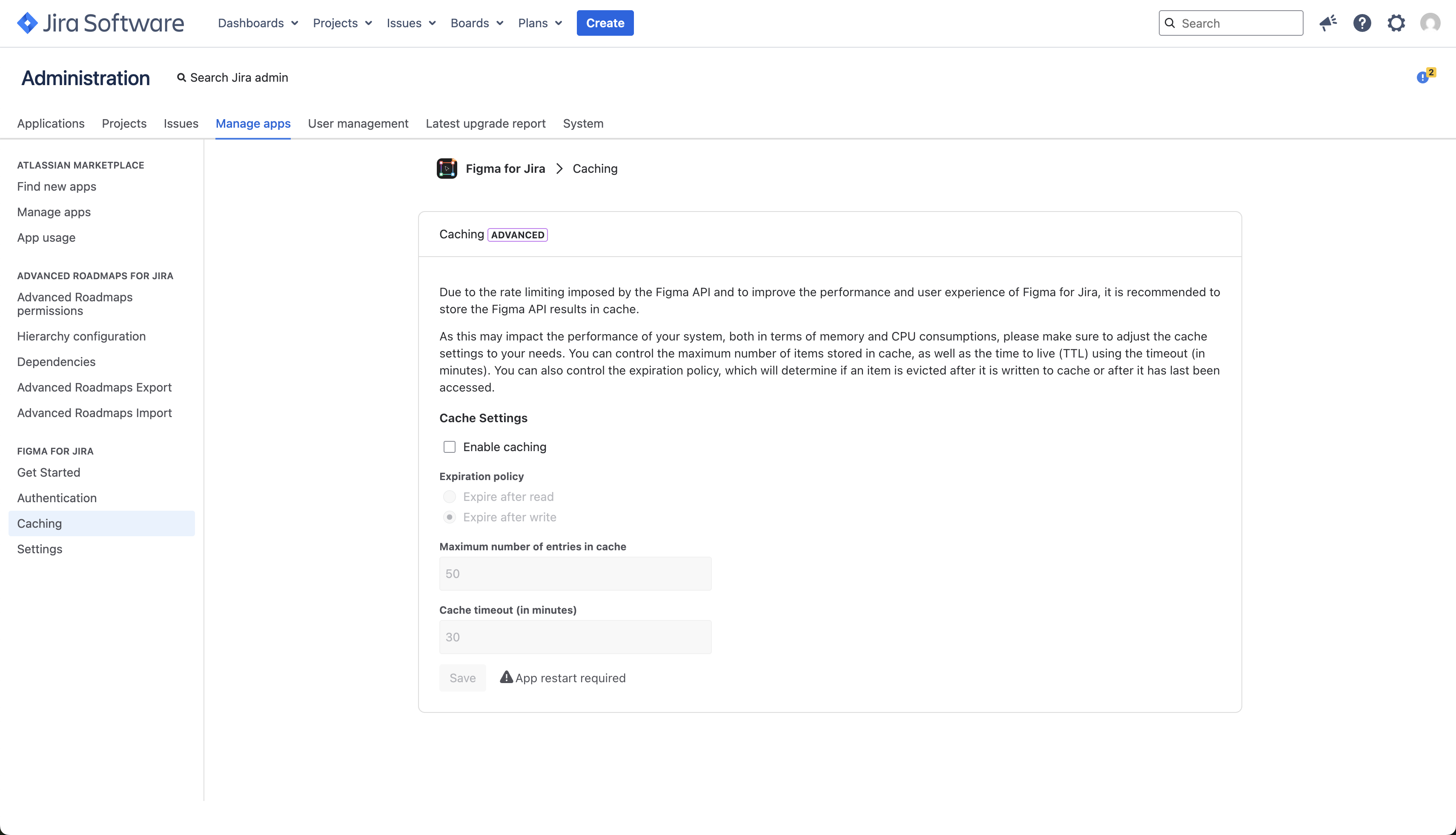
If you are experiencing issues with resource consumption, the first step is to enable caching. This will limit the amount of times the Jira instance will have to connect with the Figma API to retrieve the same content. In large Jira Data Center instances, this can reduce the memory consumption by the Figma for Jira app as the design will only be stored in memory once.
If you continue to experience issues with resource consumption after you have enabled caching, you will need to allocate more resources to your Data Center nodes in order to resolve the issue.
There are multiple reasons you may experience performance issues when trying to view Figma designs.
One of those reasons can be related to Figma API rate limiting. Whenever a user views an issue that has a Figma design attached all the attached designs (and their corresponding metadata) is retrieved from the Figma API. As the Figma API rate limits are very strict, it is very easy to exceed the number of API requests for larger Data Center instances with many active users.
Another reason for loading issues can be that the Figma files are very large. A Figma design size can range from <1MB to >100MB. Retrieving a Figma design directly from the Figma API can become a long-running task, with requests taking 30-60 seconds to complete.
Both these issues can be resolved by enabling caching.
You can configure the caching feature in by taking the following steps: