After you’ve installed Figma for Jira, you can start adding Figma designs to your Jira work items.
Adding app to the Jira work item view
Open the Jira work item view and click on Apps.
Jira will show installed apps that can be added to the view.
Click Figma for Jira.
A Figma for Jira panel will appear below the Description field. This panel will now be available on all existing Jira work items.
Obtaining a Figma URL
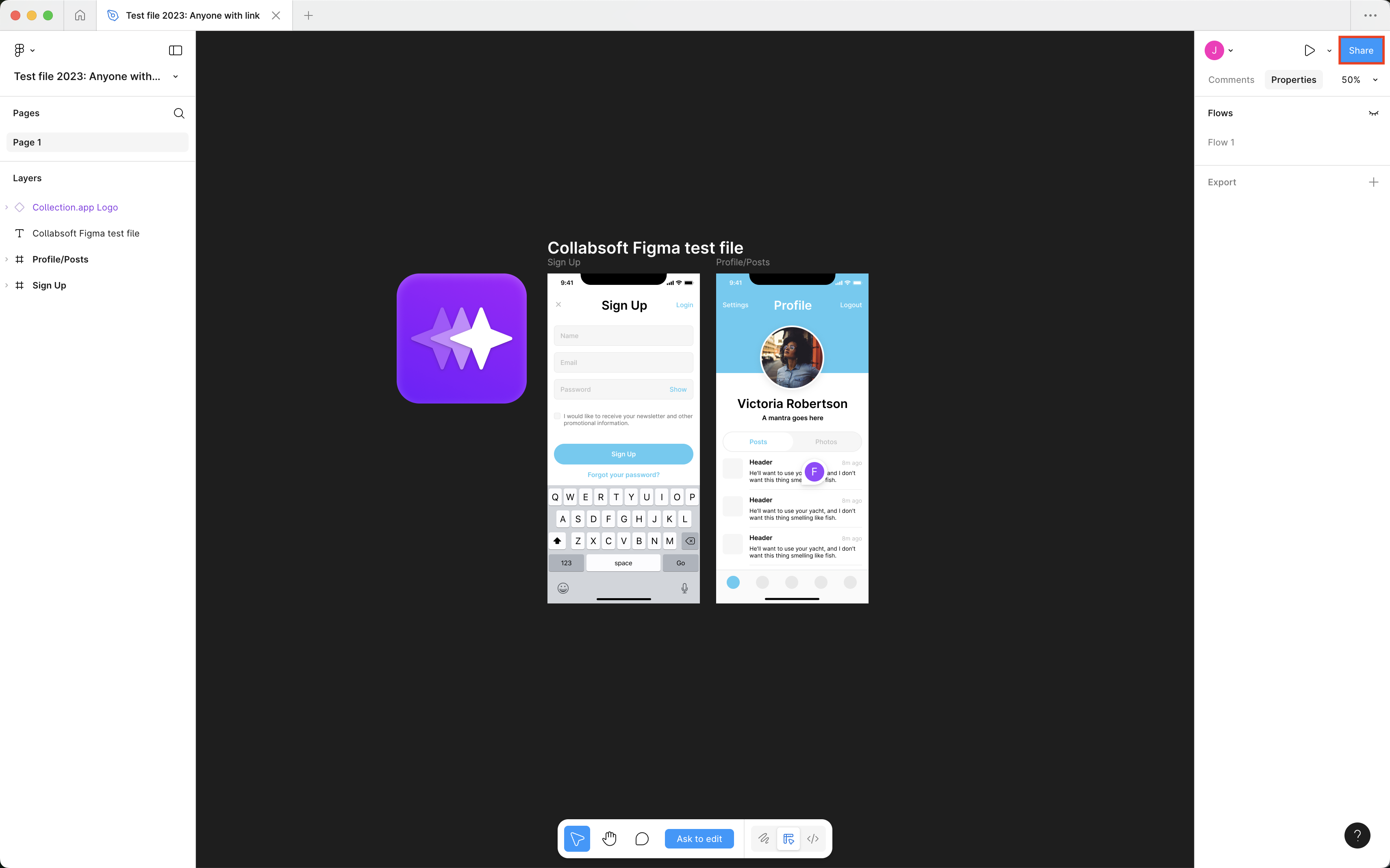
To obtain the Figma URL, you need to open Figma and click on the Share button in the top right corner.
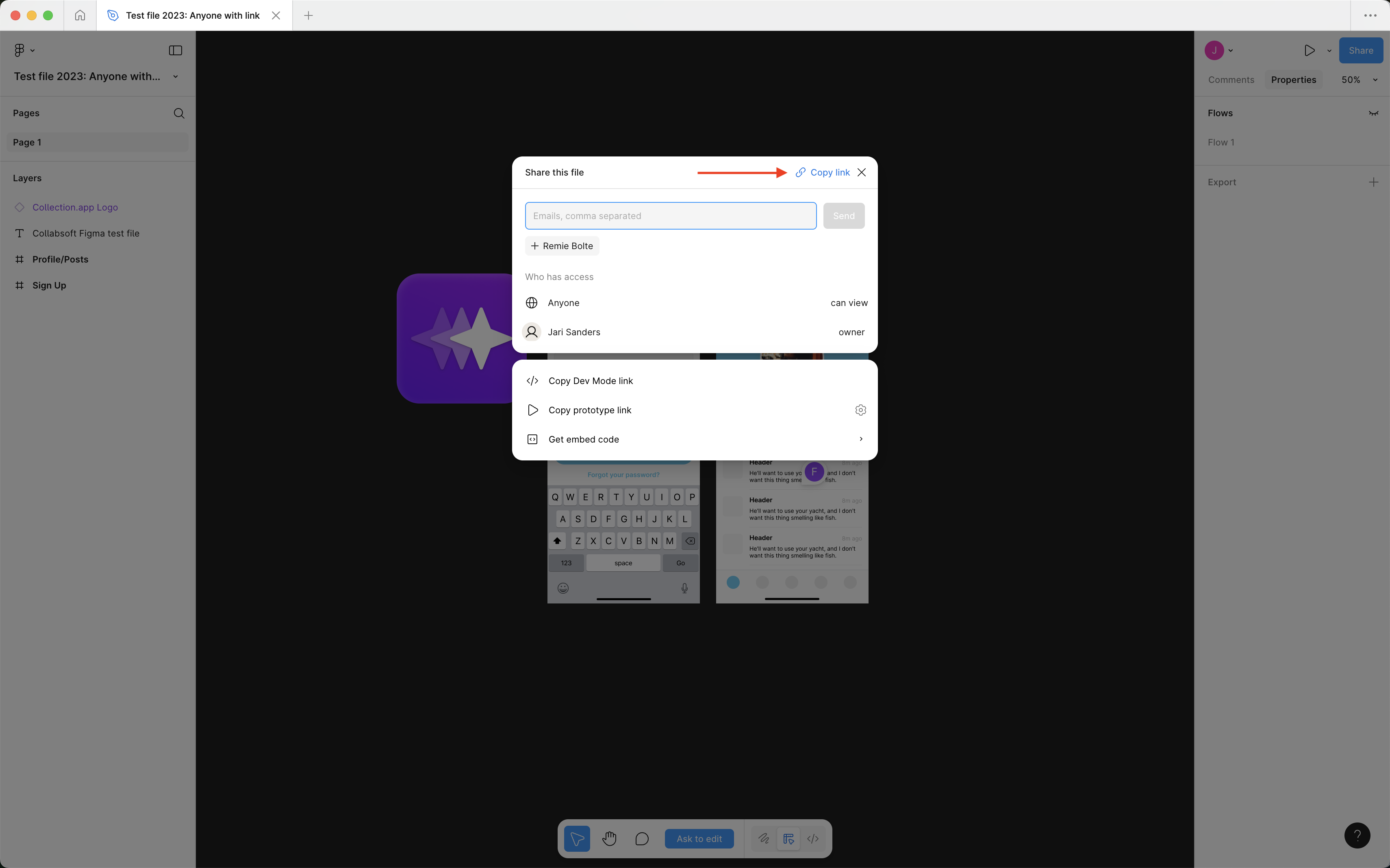
In the dialog that opens, click Copy link.
The link to the specific design will be copied to your clipboard.
Adding Figma design to a work item
Paste theURL of your Figma design into the input box of the Figma for Jira panel.
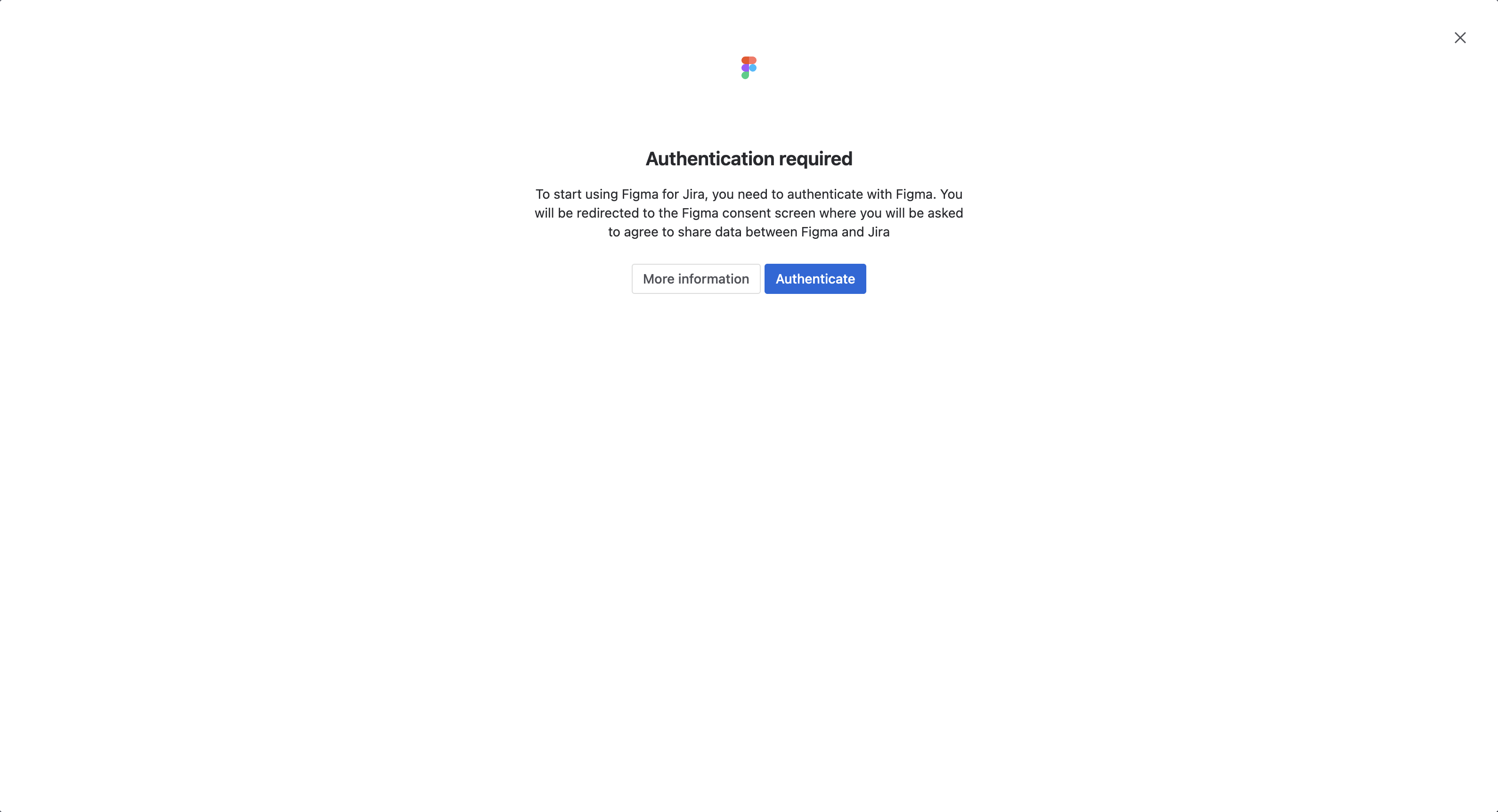
Click the Add button. In order to embed Figma designs in Jira work items, Figma for Jira needs access to the Figma API. Upon clicking on the add button, you will be asked to share your data between Figma and Jira. You can find more information with regards to authenticating the Figma for Jira Pro app here
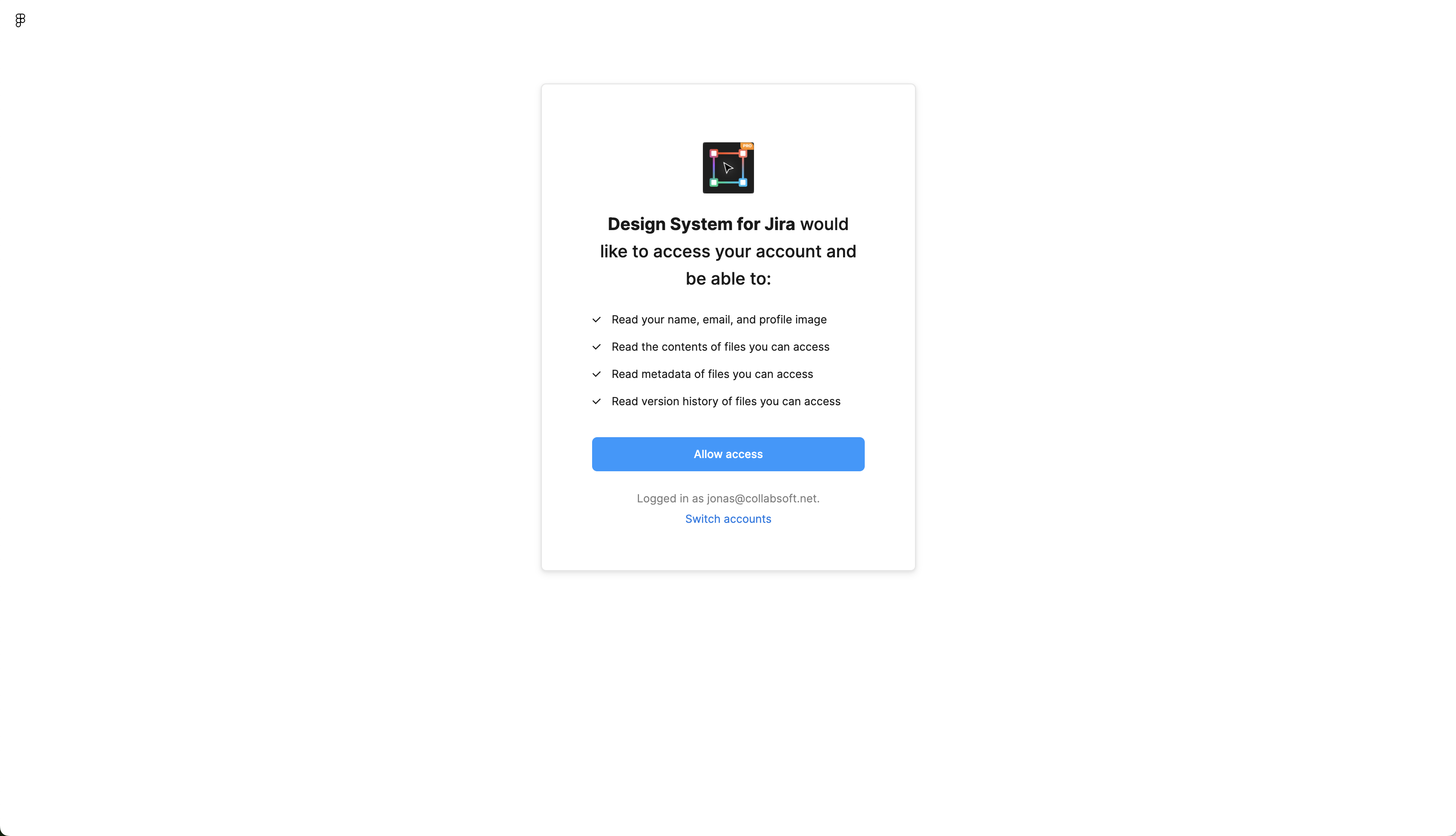
Click on Authenticate If you are using the app on Jira Cloud you will be redirected to the Figma consent screen. If you are using the app on Jira Data Center the Add new token modal will open.
Click on Allow Acces
After the authentication check has been completed, the app will load your Figma design!
Deleting Figma design from a work item
Once you have added your Figma design to your Jira work item, you won’t be able to adjust the Figma URL. If you want to change the embedded design, you’ll need to remove it and add a new one.
To remove a Figma design from a Jira work item, follow these steps:
Click the information button - this "flips-ver" the design.
Click the red Remove from work item button in the bottom left of the panel.
Versioning
By default, the design you've embedded in your Jira work item is the current version of the design in Figma, which is pinned to the work item.
The pinning feature means that any future versions created in Figma will not reflect in Jira. You would have to manually update the version to get any changes made in Figma to render.
This makes sure developers receive locked-in designs, improving the integrity of your design handoffs and preventing scope creep and rework once devs start coding.
Embedding your Figma design is just the start of what you can do with the app. You can find a detailed explanation of all the other features on the next pages!