

Docs
Menu
Close
Unlike Figma’s free Jira app, Figma for Jira Pro lets users view private Figma designs in Jira work items without a Figma account. Our app requires only one user to have a Figma account with access to the files to be embedded.
To enable users to view designs without logging in, the user who does have a Figma account needs to authenticate the app. We offer two authentication methods:
As of 17 november 2025, Figma’s updated rate limits are in effect. Before you use one of the above authentication methods, it is important the understand Figma’s API rate limiting policy’s and the implications of each authentication method regarding these policy’s. Understanding these policy’s will help all Figma for Jira users have a smooth error free experience.
Figma applies rate limits to requests to the Figma REST API to provide a consistent and reliable experience for users. Requests to the Figma REST API are limited based on three factors:
Rate limits apply to both OAuth apps and personal access tokens.
For personal access tokens, rate limits are tracked on a per-user, per-plan basis, where the user is whoever generated the token.
For OAuth apps, rate limits are tracked on a per-user, per-plan, per-app basis. This means that a user gets a unique rate limit budget for each app they’re using. A user’s usage of app A won’t affect their usage of app B.
You can find further details with regards to Figma’s rate limits here.
To make sure the Figma for Jira app can “serve” your Figma designs without running into rate limiting issues, it is imperative that:
Please do not use files in a Starter plan or accounts with Collab or View seats.
Figma for Jira supports personal access tokens to get access to files through the Figma API. Personal access tokens are linked to a specific Figma user account, meaning that any file you wish to include needs to be accessible by the user account associated with the token ('can view' rights).
With this in mind, we advise creating a generic Figma account for Figma for Jira (e.g. figmaforjira@yourdomain.com) and to create an access token for this account. By creating a generic account, the access token is not linked to your personal account.
Please keep in mind that you need to add figmaforjira@yourdomain.com to each Figma file you would like to embed.
You can take the following steps to create a token:
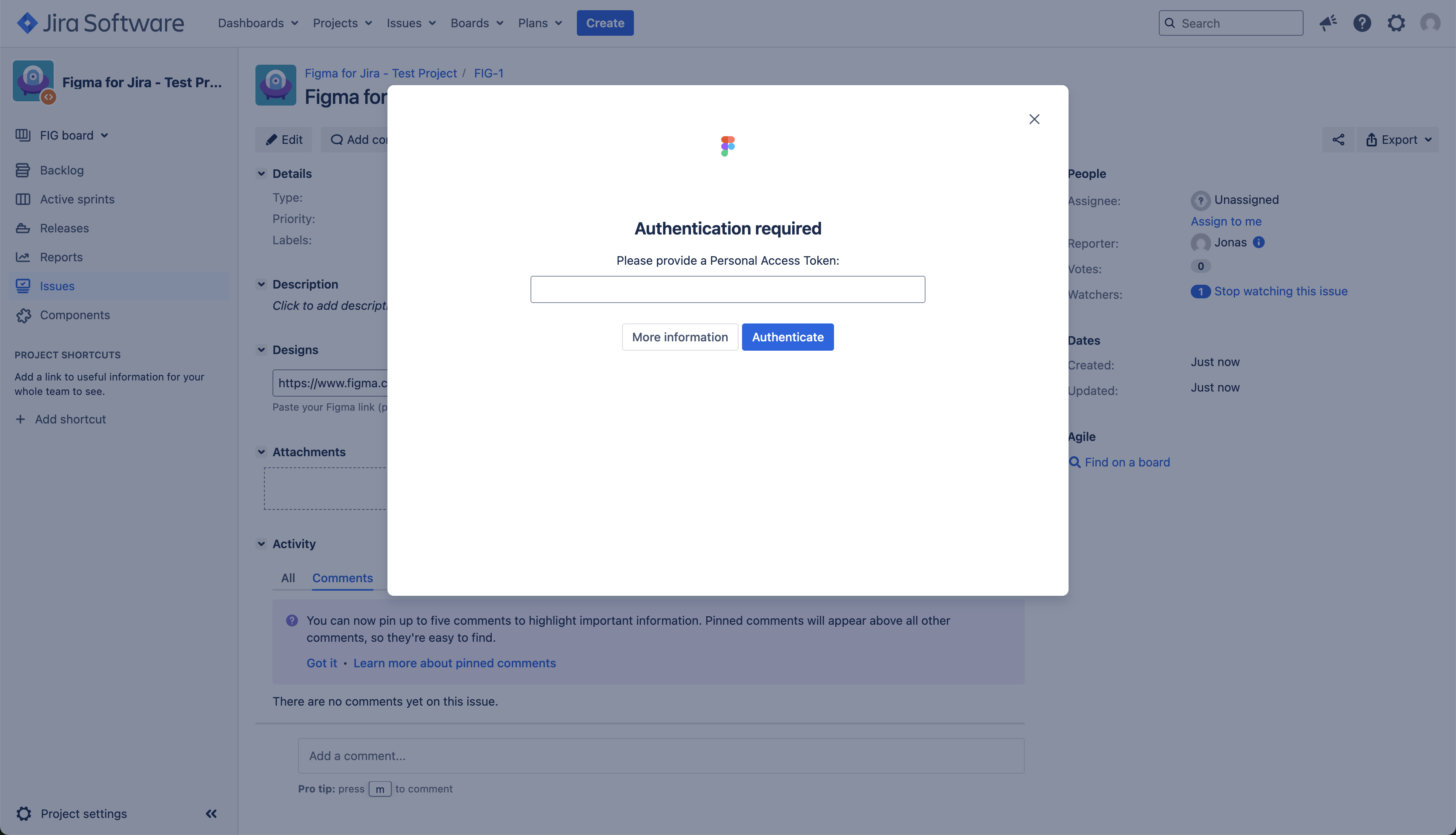
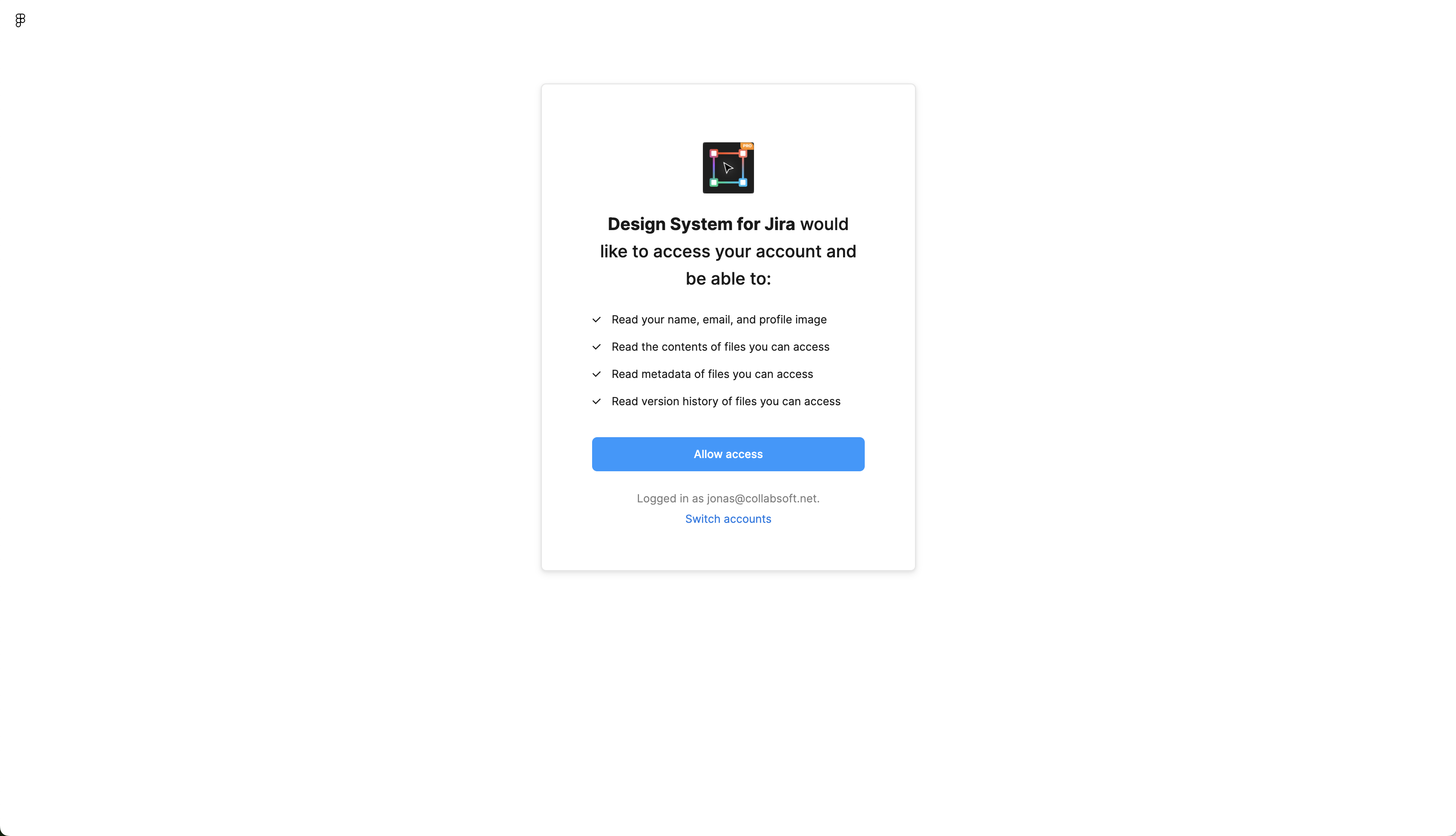
You can authorize the Figma for Jira app to access the Figma API on your behalf. This will give Figma for Jira read-only permissions to all the files the authorizing user has access to, meaning that any file that you wish to include needs to be accessible by this user account ('can view' rights).
You can authenticate with Figma by taking the following steps:
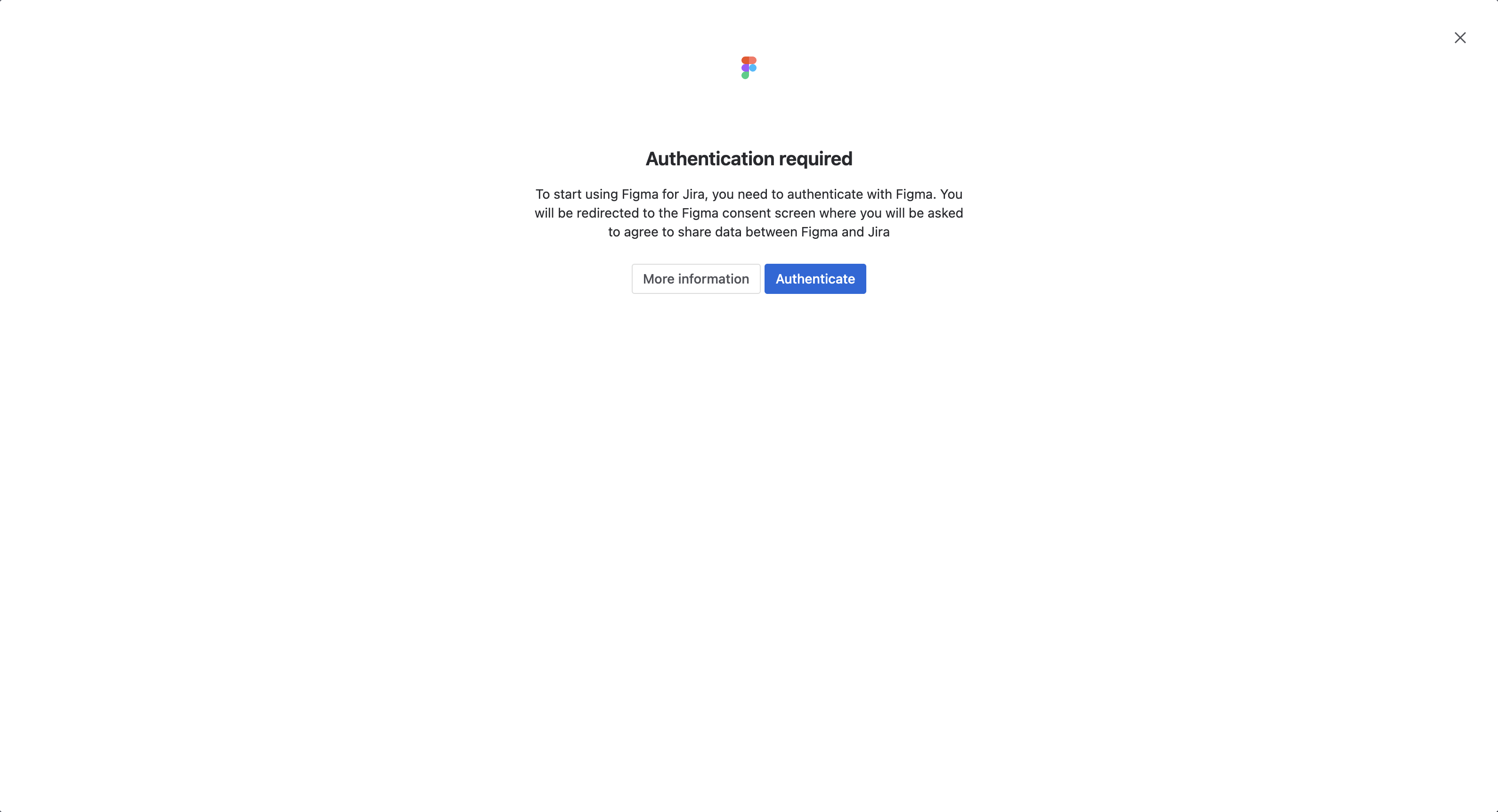
Jira admins can manage the authentication settings on the Authentication page in Figma for Jira. To find this page:
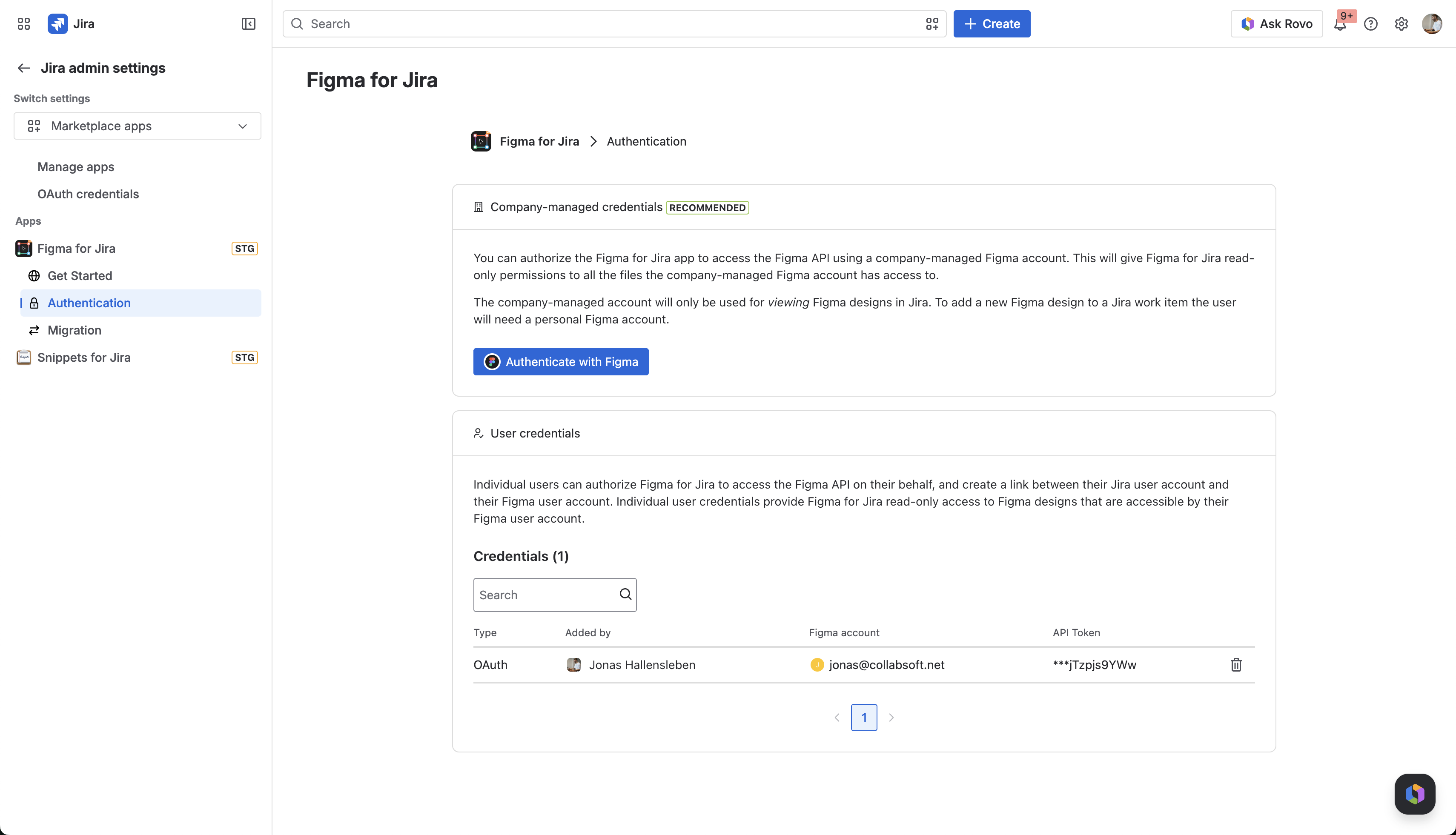
You can authorize the Figma for Jira app to access the Figma API using a company-managed Figma account. This will give Figma for Jira read-only permissions to all the files the company-managed Figma account has access to.
The company-managed account will only be used for viewing Figma designs in Jira. To add a new Figma design to a Jira work item the user will need a personal Figma account.
For company managed credentials, we advise using a generic Figma account (e.g. figmaforconfluence@yourdomain.com) By creating a generic account, the authentication is not linked to your personal account. This means that if somebody leaves your organisation and their Figma account is no longer in use, the Figma designs added by that user will remain visible via the company managed account.
To add a Company account please take the following steps:
