
Docs
Menu
Close
After you’ve installed Zeplin for Confluence PRO, you can start adding Zeplin resources to your Confluence pages using the Zeplin for Confluence PRO macro.


Zeplin for Confluence supports embedding a number of different Zeplin resources. You can find a full overview of the resources that are supported and how to retrieve the required URL here.

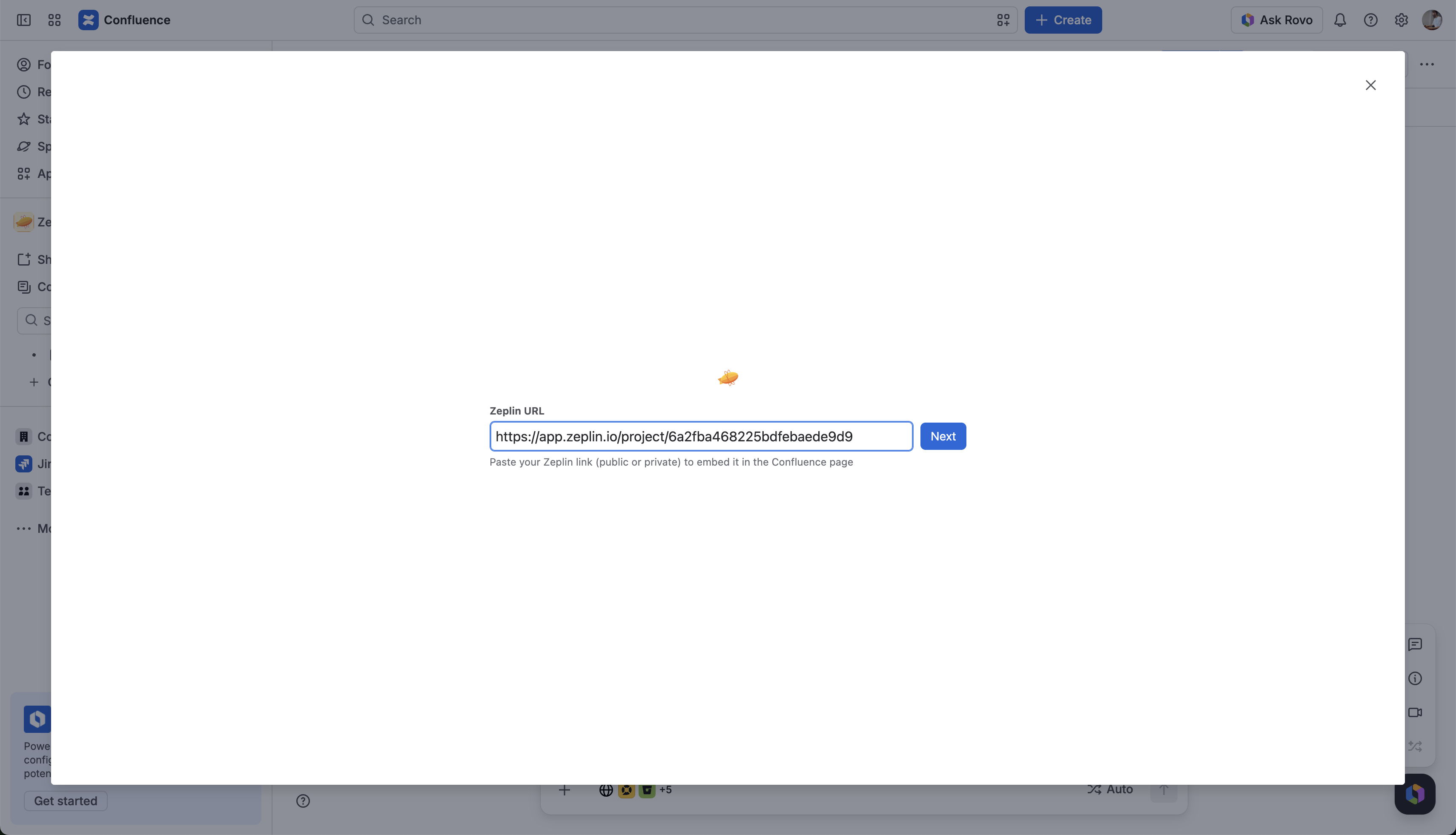

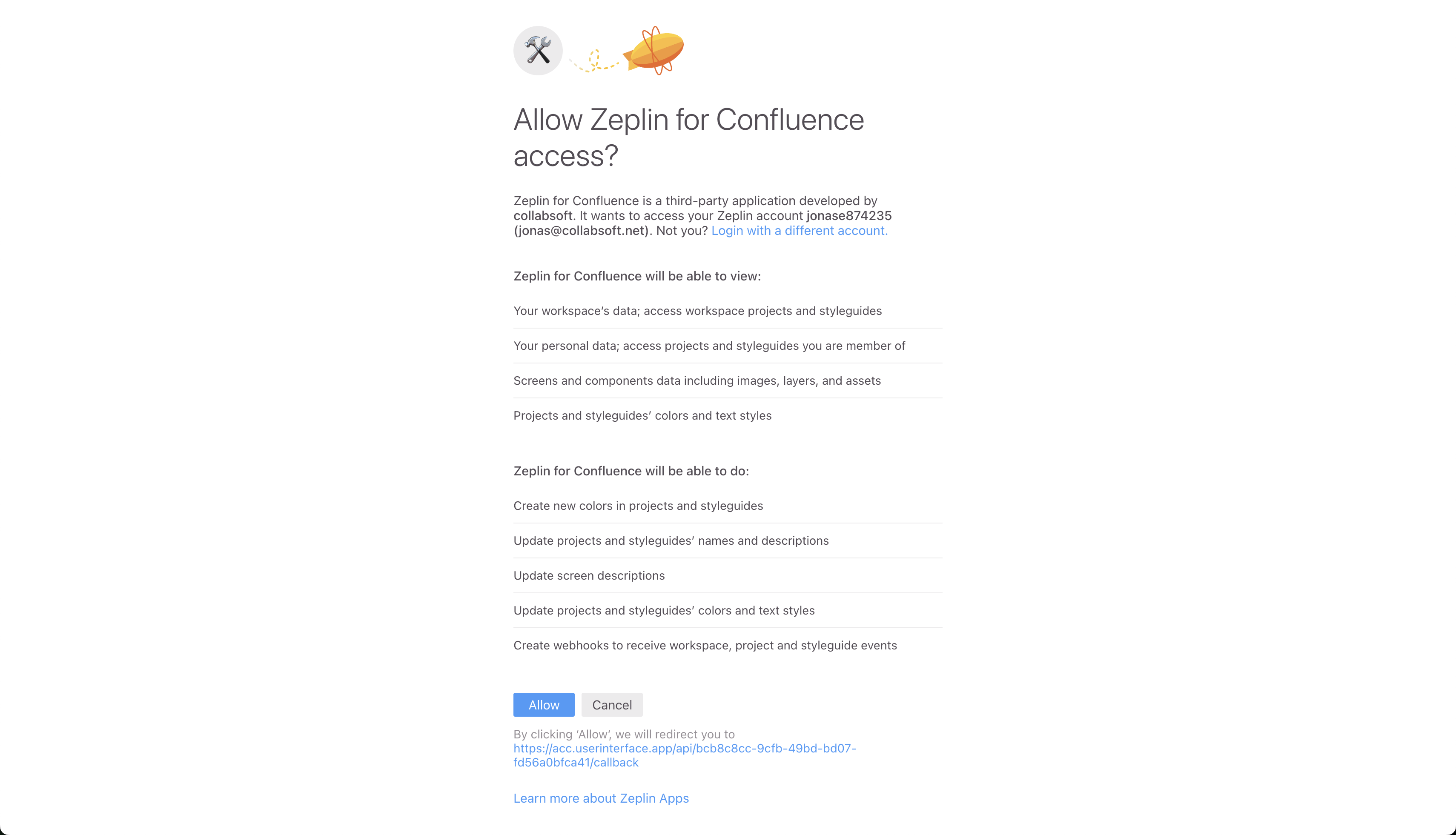
The macro editor will allow you to customize how your Zeplin resource is shown on the Confluence page. After authenticating the app, a preview of your Zeplin resource will load in the right panel of the macro editor. This will give you an idea of how the macro will appear on your Confluence page based on the settings you choose.

You can also use the preview to see what the macro will look like when you select a different page or macro width using Confluence’s native features.
In the editor, you can choose a specific display type and select your desired height by either choosing one of the predefined sizes or providing a custom height. You can also, based on the type, select if the resource should be collapsed or expanded by default.
Although you can’t adjust the width of the macro in the macro editor, you can use Confluence’s native features. These let you change the width of the macro or the whole page in edit mode. You can further adjust the width by placing the macro in a page column or table column, which can be as wide or as narrow as you want. Your Zeplin for Confluence PRO macro will automatically adjust to fit the available width.
Find out more about the display types.
Once you have added your Zeplin link and customized how you want the resource to display, click save. The resource will be embedded in your Confluence page.

By default, the design you've embedded is the current version of the resource in Zeplin, which is pinned to your Confluence page. The pinning feature means that any future versions created in Zeplin will not reflect in Confluence. You would have to manually update the version to get any changes made in Zeplin to render.
This maintains the integrity of your Confluence design documentation, allowing stakeholders to use and reference it without the design assets constantly changing.
Find out more about version control in Zeplin for Confluence PRO and how to switch versions or turn off the pinning feature.
Embedding your Zeplin resource is just the start of what you can do with the app. You can find a detailed explanation of all the other features on the next pages!